关闭当前浏览器标签页/窗口
这是最简单的“关闭”操作,直接调用 window.close() 方法。
(图片来源网络,侵删)
HTML 代码
<button id="closePageBtn">关闭页面</button>
JavaScript 代码
// 获取按钮元素
const closePageBtn = document.getElementById('closePageBtn');
// 为按钮添加点击事件监听器
closePageBtn.addEventListener('click', function() {
  // 关闭当前窗口或标签页
  window.close();
});
注意事项:
- 出于安全原因,
window.close()只能由 JavaScript 打开的窗口关闭,如果你尝试关闭一个不是由脚本打开的窗口(比如直接在浏览器中打开的页面),浏览器通常会忽略这个请求,或者弹出一个提示,不允许你执行此操作。 - 这个方法会直接关闭整个页面,在大多数情况下,我们更希望关闭的是页面上的某个组件,而不是整个页面。
关闭一个模态弹窗
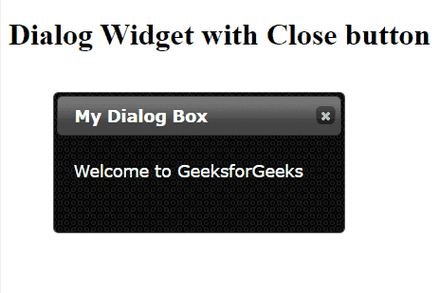
这是最常见的需求,比如登录框、广告弹窗、提示信息等,我们通过点击按钮来隐藏一个弹窗元素。
(图片来源网络,侵删)
实现思路:
- HTML: 创建弹窗容器、弹窗内容和一个关闭按钮。
- CSS: 设置弹窗的样式,默认是隐藏的(
display: none),当需要显示时再设置为可见(display: block或flex)。 - JavaScript: 为关闭按钮绑定点击事件,点击时修改弹窗容器的样式,使其重新隐藏。
完整示例代码
你可以直接将以下代码保存为一个 .html 文件,然后在浏览器中打开查看效果。
<!DOCTYPE html>
<html lang="zh-CN">
<head>
<meta charset="UTF-8">
<meta name="viewport" content="width=device-width, initial-scale=1.0">JavaScript 关闭按钮示例</title>
<style>
/* 页面背景样式 */
body {
font-family: Arial, sans-serif;
text-align: center;
padding-top: 50px;
}
/* 打开弹窗的按钮 */
#openModalBtn {
padding: 10px 20px;
font-size: 16px;
cursor: pointer;
background-color: #007bff;
color: white;
border: none;
border-radius: 5px;
}
/* 弹窗容器(模态框) */
.modal {
display: none; /* 默认隐藏 */
position: fixed; /* 固定定位 */
z-index: 1; /* 置于顶层 */
left: 0;
top: 0;
width: 100%;
height: 100%;
overflow: auto; /* 如果内容太多可以滚动 */
background-color: rgba(0, 0, 0, 0.4); /* 半透明黑色背景 */
}
/* 弹窗内容 */
.modal-content {
background-color: #fefefe;
margin: 15% auto; /* 15% 从顶部开始,水平居中 */
padding: 20px;
border: 1px solid #888;
width: 80%;
max-width: 500px;
border-radius: 8px;
position: relative; /* 为关闭按钮提供定位参考 */
box-shadow: 0 4px 8px rgba(0,0,0,0.1);
}
/* 关闭按钮 */
.close {
color: #aaa;
float: right;
font-size: 28px;
font-weight: bold;
cursor: pointer;
line-height: 1; /* 防止按钮高度过大 */
}
/* 鼠标悬停在关闭按钮上时的样式 */
.close:hover,
.close:focus {
color: black;
text-decoration: none;
}
</style>
</head>
<body>
<h2>JavaScript 关闭弹窗示例</h2>
<p>点击下面的按钮打开一个弹窗。</p>
<button id="openModalBtn">打开弹窗</button>
<!-- 弹窗 (Modal) -->
<div id="myModal" class="modal">
<!-- 弹窗内容 -->
<div class="modal-content">
<span class="close">×</span>
<p>这是一个示例弹窗。</p>
<p>点击右上角的 "x" 按钮可以关闭我。</p>
</div>
</div>
<script>
// 获取弹窗元素
const modal = document.getElementById("myModal");
// 获取打开弹窗的按钮
const openBtn = document.getElementById("openModalBtn");
// 获取关闭按钮
const closeBtn = document.getElementsByClassName("close")[0];
// 点击打开按钮,打开弹窗
openBtn.onclick = function() {
modal.style.display = "block";
}
// 点击关闭按钮,关闭弹窗
closeBtn.onclick = function() {
modal.style.display = "none";
}
// 点击弹窗外部(半透明背景),也可以关闭弹窗
window.onclick = function(event) {
if (event.target == modal) {
modal.style.display = "none";
}
}
</script>
</body>
</html>
代码解析:
-
HTML:
 (图片来源网络,侵删)
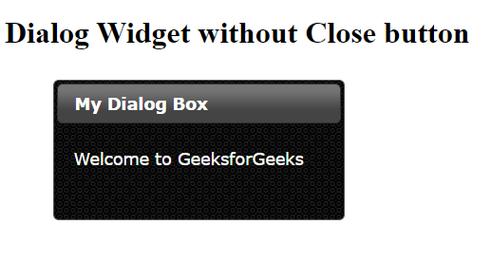
#openModalBtn: 用于触发弹窗显示的按钮。#myModal: 整个弹窗的容器,我们通过控制它的display属性来显示或隐藏它。.modal-content: 弹窗的实际内容区域。.close: 关闭按钮,我们为它绑定关闭事件。
-
CSS:
.modal { display: none; }: 这是关键,弹窗默认是隐藏的。.modal { position: fixed; ... }:fixed定位让弹窗覆盖在整个视窗上,background-color: rgba(...)创建了半透明的遮罩层效果。.close { float: right; ... }: 将关闭按钮定位在弹窗内容的右上角。
-
JavaScript:
openBtn.onclick: 当点击“打开弹窗”按钮时,将modal的display样式设置为"block",使其显示。closeBtn.onclick: 当点击“关闭”按钮时,将modal的display样式设置回"none",使其隐藏。window.onclick: 这是一个很贴心的功能,当用户点击弹窗区域外的任何地方(也就是半透明的遮罩层)时,也会触发关闭弹窗。event.target == modal判断了点击的目标是否就是弹窗容器本身,如果是,则关闭。
关闭一个侧边栏或可折叠面板
这种关闭操作通常是在页面内部,通过添加或移除 CSS 类来实现动画效果。
实现思路:
- HTML: 创建侧边栏容器和关闭按钮。
- CSS: 定义侧边栏的默认样式和“关闭”状态(通过
transform: translateX(-100%)将其移出屏幕)。 - JavaScript: 点击按钮时,为侧边栏容器添加一个表示“关闭”的 CSS 类;再次点击(或通过另一个“打开”按钮)时,移除这个类。
完整示例代码
<!DOCTYPE html>
<html lang="zh-CN">
<head>
    <meta charset="UTF-8">关闭侧边栏示例</title>
    <style>
        body {
            margin: 0;
            font-family: sans-serif;
        }
        /* 主内容区域 */
        .main-content {
            padding: 20px;
            margin-left: 250px; /* 初始宽度与侧边栏相同 */
            transition: margin-left 0.3s ease; /* 平滑过渡效果 */
        }
        /* 侧边栏容器 */
        .sidebar {
            position: fixed;
            top: 0;
            left: 0;
            width: 250px;
            height: 100%;
            background-color: #333;
            color: white;
            padding: 20px;
            transition: transform 0.3s ease; /* 平滑移动效果 */
        }
        /* 侧边栏关闭状态的样式 */
        .sidebar.closed {
            transform: translateX(-100%); /* 向左移动自身宽度的距离 */
        }
        /* 主内容区域在侧边栏关闭时的样式 */
        .main-content.sidebar-closed {
            margin-left: 0;
        }
        /* 关闭按钮 */
        .close-sidebar-btn {
            position: absolute;
            top: 10px;
            right: 10px;
background: #f443