这个“大全”不会是零散的代码片段,而是会按照效果类别进行组织,并提供每个类别的核心原理、代码示例、以及进阶技巧,这样您不仅能直接复制代码,更能理解其背后的逻辑,并学会如何组合和修改它们,创造出更惊艳的效果。
(图片来源网络,侵删)
目录
- 视觉与动画效果
- 渐变背景
- 文字渐变与描边
- 平滑滚动
- CSS3 动画
- SVG 动画
- 交互与用户体验
- 拖放上传
- 自定义滑块
- 手风琴折叠面板
- 模态弹窗
- 加载动画
- 高级布局与特效
- 粘性定位
- 视差滚动
- 玻璃态效果
- 3D 变换
- 混合模式
- 实用功能组件
- 响应式导航栏
- 标签页
- 进度条
- 通知提示框
- 综合实战案例
- 现代登录页面
- 个人作品集/卡片展示
如何使用这份“大全”
- 复制粘贴:每个示例都是独立的,您可以直接复制到您的 HTML 文件中运行。
- 理解原理:重点阅读
<!-- 核心原理 -->和<!-- 进阶技巧 -->的注释,这是您从“会用”到“精通”的关键。 - 自由组合:这些效果可以像乐高积木一样自由组合,一个玻璃态的模态弹窗,带有平滑滚动和加载动画,是非常现代的组合。
视觉与动画效果
1 渐变背景
不仅限于纯色,CSS 渐变可以创造丰富的背景效果。
<!DOCTYPE html>
<html lang="zh-CN">
<head>
    <meta charset="UTF-8">渐变背景</title>
    <style>
        body {
            margin: 0;
            height: 100vh;
            display: flex;
            justify-content: center;
            align-items: center;
            font-size: 2em;
            color: white;
            font-weight: bold;
        }
        /*
         * 核心原理:使用 background 属性的线性或径向渐变。
         * linear-gradient: 线性渐变,可以指定方向 (to right, to bottom, 45deg 等)。
         * radial-gradient: 径向渐变,从一个中心点向外扩散。
         * 颜色节点可以无限添加,用逗号隔开。
        */
        .gradient-bg {
            width: 100%;
            height: 100%;
            background: linear-gradient(135deg, #667eea 0%, #764ba2 100%);
        }
        .radial-gradient-bg {
            background: radial-gradient(circle, #f093fb 0%, #f5576c 100%);
        }
        .multi-color-gradient-bg {
            background: linear-gradient(to right, #ff9a9e, #fad0c4, #fad0c4, #a18cd1);
        }
    </style>
</head>
<body>
    <div class="gradient-bg">
        <h1>线性渐变</h1>
    </div>
</body>
</html>
2 文字渐变与描边
让文字本身也成为视觉焦点。
<!DOCTYPE html>
<html lang="zh-CN">
<head>
    <meta charset="UTF-8">文字效果</title>
    <style>
        body { display: flex; justify-content: center; align-items: center; height: 100vh; background: #333; }
        /*
         * 核心原理:
         * 1. 文字渐变:给文字设置一个 `background` 渐变,然后用 `background-clip: text` 将渐变裁剪到文字形状,
         *    并用 `color: transparent` 让文字本身透明。
         * 2. 文字描边:使用 `-webkit-text-stroke` 属性(注意浏览器前缀)。
        */
        .gradient-text {
            font-size: 5em;
            font-weight: bold;
            background: linear-gradient(to right, #f093fb, #f5576c);
            -webkit-background-clip: text;
            background-clip: text;
            color: transparent;
        }
        .stroke-text {
            font-size: 5em;
            font-weight: bold;
            color: white;
            -webkit-text-stroke: 2px #f5576c;
        }
    </style>
</head>
<body>
    <div>
        <h1 class="gradient-text">渐变文字</h1>
        <h1 class="stroke-text">描边文字</h1>
    </div>
</body>
</html>
3 平滑滚动
点击导航链接时,页面不是瞬间跳转,而是平滑地滚动到目标位置。
<!DOCTYPE html>
<html lang="zh-CN">
<head>
    <meta charset="UTF-8">平滑滚动</title>
    <style>
        html { scroll-behavior: smooth; } /* 核心:只需这一行 CSS! */
        body { font-family: sans-serif; }
        section { height: 100vh; border-top: 1px solid #ccc; display: flex; justify-content: center; align-items: center; font-size: 2em; }
        nav { position: fixed; top: 0; width: 100%; background: white; padding: 1rem; box-shadow: 0 2px 5px rgba(0,0,0,0.1); z-index: 1000; }
        nav a { margin: 0 1rem; text-decoration: none; color: #333; }
    </style>
</head>
<body>
    <nav>
        <a href="#section1">第一部分</a>
        <a href="#section2">第二部分</a>
        <a href="#section3">第三部分</a>
    </nav>
    <section id="section1">第一部分</section>
    <section id="section2">第二部分</section>
    <section id="section3">第三部分</section>
</body>
</html>
4 CSS3 动画
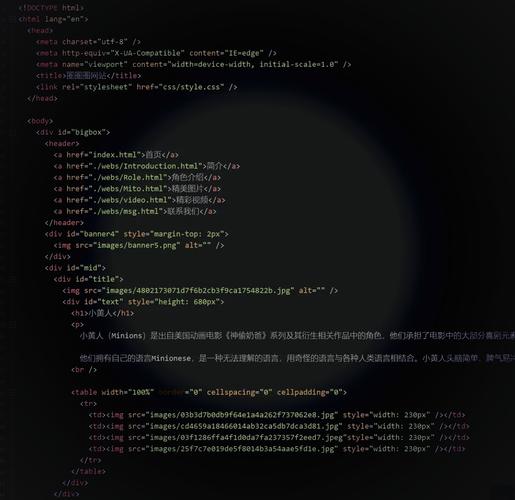
创建简单的、纯 CSS 的动画效果,如旋转、淡入淡出。
(图片来源网络,侵删)
<!DOCTYPE html>
<html lang="zh-CN">
<head>
    <meta charset="UTF-8">CSS3 动画</title>
    <style>
        body { display: flex; justify-content: center; align-items: center; height: 100vh; background: #f0f0f0; }
        .box {
            width: 100px;
            height: 100px;
            background: #4CAF50;
            margin: 50px;
        }
        /*
         * 核心原理:
         * 1. @keyframes: 定义动画的关键帧(0%, 50%, 100% 等时间点的状态)。
         * 2. animation: 将定义好的动画应用到元素上,并控制其持续时间、速度曲线、播放次数等。
        */
        /* 旋转动画 */
        .rotate {
            animation: spin 2s linear infinite;
        }
        @keyframes spin {
            from { transform: rotate(0deg); }
            to { transform: rotate(360deg); }
        }
        /* 脉冲动画 */
        .pulse {
            animation: pulse 1.5s ease-in-out infinite;
        }
        @keyframes pulse {
            0% { transform: scale(1); opacity: 1; }
            50% { transform: scale(1.1); opacity: 0.7; }
            100% { transform: scale(1); opacity: 1; }
        }
    </style>
</head>
<body>
    <div class="box rotate"></div>
    <div class="box pulse"></div>
</body>
</html>
交互与用户体验
1 拖放上传
用户可以直接将文件拖到指定区域来上传,体验更直观。
<!DOCTYPE html>
<html lang="zh-CN">
<head>
    <meta charset="UTF-8">拖放上传</title>
    <style>
        #drop-zone {
            width: 300px;
            height: 200px;
            border: 3px dashed #ccc;
            border-radius: 10px;
            display: flex;
            justify-content: center;
            align-items: center;
            text-align: center;
            font-size: 1.2em;
            color: #999;
            cursor: pointer;
            transition: border-color 0.3s;
        }
        #drop-zone.drag-over {
            border-color: #007bff;
            background-color: #f0f8ff;
        }
        .file-list { margin-top: 20px; }
        .file-item { padding: 5px; background: #eee; margin-bottom: 5px; border-radius: 5px; }
    </style>
</head>
<body>
    <div id="drop-zone">
        <p>拖放文件到这里<br>或者 <span id="file-input-label">点击选择</span></p>
        <input type="file" id="file-input" style="display: none;" multiple>
    </div>
    <div id="file-list" class="file-list"></div>
    <script>
        const dropZone = document.getElementById('drop-zone');
        const fileInput = document.getElementById('file-input');
        const fileList = document.getElementById('file-list');
        const fileInputLabel = document.getElementById('file-input-label');
        // 点击触发文件选择
        dropZone.addEventListener('click', () => fileInput.click());
        fileInputLabel.addEventListener('click', (e) => {
            e.stopPropagation();
            fileInput.click();
        });
        // 拖放事件
        dropZone.addEventListener('dragover', (e) => {
            e.preventDefault();
            dropZone.classList.add('drag-over');
        });
        dropZone.addEventListener('dragleave', () => {
            dropZone.classList.remove('drag-over');
        });
        dropZone.addEventListener('drop', (e) => {
            e.preventDefault();
            dropZone.classList.remove('drag-over');
            const files = e.dataTransfer.files;
            handleFiles(files);
        });
        // 文件选择事件
        fileInput.addEventListener('change', (e) => {
            const files = e.target.files;
            handleFiles(files);
        });
        function handleFiles(files) {
            fileList.innerHTML = '';
            for (let i = 0; i < files.length; i++) {
                const file = files[i];
                const fileItem = document.createElement('div');
                fileItem.className = 'file-item';
                fileItem.textContent = `文件名: ${file.name}, 大小: ${(file.size / 1024).toFixed(2)} KB`;
                fileList.appendChild(fileItem);
            }
        }
    </script>
</body>
</html>
2 自定义滑块
摆脱浏览器默认的丑陋样式,打造符合设计风格的滑块。
<!DOCTYPE html>
<html lang="zh-CN">
<head>
    <meta charset="UTF-8">自定义滑块</title>
    <style>
        body { display: flex; justify-content: center; align-items: center; height: 100vh; background: #f4f4f4; }
        .custom-slider {
            width: 300px;
            height: 10px;
            background: #ddd;
            border-radius: 5px;
            position: relative;
        }
        .slider-thumb {
            width: 20px;
            height: 20px;
            background: #007bff;
            border-radius: 50%;
            position: absolute;
            top: 50%;
            transform: translate(-50%, -50%);
            cursor: pointer;
            box-shadow: 0 2px 5px rgba(0,0,0,0.2);
        }
        .slider-value {
            margin-top: 10px;
            text-align: center;
            font-weight: bold;
        }
    </style>
</head>
<body>
    <div>
        <div class="custom-slider" id="mySlider">
            <div class="slider-thumb" id="sliderThumb"></div>
        </div>
        <div class="slider-value" id="sliderValue">50</div>
    </div>
    <script>
        const slider = document.getElementById('mySlider');
        const thumb = document.getElementById('sliderThumb');
        const valueDisplay = document.getElementById('sliderValue');
        let isDragging = false;
        // 初始化滑块位置
        function updateSliderValue(clientX) {
            const rect = slider.getBoundingClientRect();
            let x = clientX - rect.left;
            x = Math.max(0, Math.min(x, rect.width)); // 限制在滑块范围内
            const percentage = (x / rect.width) * 100;
            thumb.style.left = `${x}px`;
            valueDisplay.textContent = Math.round(percentage);
        }
        thumb.addEventListener('mousedown', () => isDragging = true);
        document.addEventListener('mousemove', (e) => {
            if (isDragging) {
                updateSliderValue(e.clientX);
            }
        });
        document.addEventListener('mouseup', () => isDragging = false);
        // 点击滑块轨道也可以跳转
        slider.addEventListener('click', (e) => {
            if (e.target === slider) {
                updateSliderValue(e.clientX);
            }
        });
    </script>
</body>
</html>
3 手风琴折叠面板
节省空间,让内容在需要时才展开。
<!DOCTYPE html>
<html lang="zh-CN">
<head>
    <meta charset="UTF-8">手风琴面板</title>
    <style>
        body { font-family: sans-serif; max-width: 600px; margin: 50px auto; }
        .accordion {
            border: 1px solid #ccc;
            border-radius: 5px;
            overflow: hidden;
        }
        .accordion-item {
            border-bottom: 1px solid #eee;
        }
        .accordion-item:last-child {
            border-bottom: none;
        }
        .accordion-header {
            padding: 15px;
            background: #f7f7f7;
            cursor: pointer;
            display: flex;
            justify-content: space-between;
            align-items: center;
            transition: background 0.3s;
        }
        .accordion-header:hover {
            background: #eee;
        }
        .accordion-content {
            padding: 0 15px;
            max-height: 0;
            overflow: hidden;
            transition: max-height 0.3s ease-out, padding 0.3s ease-out;
        }
        .accordion-content.active {
            max-height: 200px; /* 根据内容调整 */
            padding: 15px;
        }
        .arrow {
            transition: transform 0.3s;
        }
        .arrow.active {
            transform: rotate(180deg);
        }
    </style>
</head>
<body>
    <div class="accordion">
        <div class="accordion-item">
            <div class="accordion-header">
                <span>第一部分标题</span>
                <span class="arrow">▼</span>
            </div>
            <div class="accordion-content">
                <p>这是第一部分的内容,当点击标题时,这部分内容会平滑地展开或折叠。</p>
            </div>
        </div>
        <div class="accordion-item">
            <div class="accordion-header">
                <span>第二部分标题</span>
                <span class="arrow">▼</span>
            </div>
            <div class="accordion-content">
                <p>这是第二部分的内容,同样,点击标题可以控制其显示和隐藏。</p>
            </div>
        </div>
        <div class="accordion-item">
            <div class="accordion-header">
                <span>第三部分标题</span>
                <span class="arrow">▼</span>
            </div>
            <div class="accordion-content">
                <p>这是第三部分的内容,这种设计非常适合展示FAQ或列表信息。</p>
            </div>
        </div>
    </div>
    <script>
        document.querySelectorAll('.accordion-header').forEach(header => {
            header.addEventListener('click', () => {
                const content = header.nextElementSibling;
                const arrow = header.querySelector('.arrow');
                // 切换当前项的 active 类
                content.classList.toggle('active');
                arrow.classList.toggle('active');
                // 可选:关闭其他打开的项(手风琴效果)
                // document.querySelectorAll('.accordion-content').forEach(item => {
                //     if (item !== content && item.classList.contains('active')) {
                //         item.classList.remove('active');
                //         item.previousElementSibling.querySelector('.arrow').classList.remove('active');
                //     }
                // });
            });
        });
    </script>
</body>
</html>
高级布局与特效
1 玻璃态效果
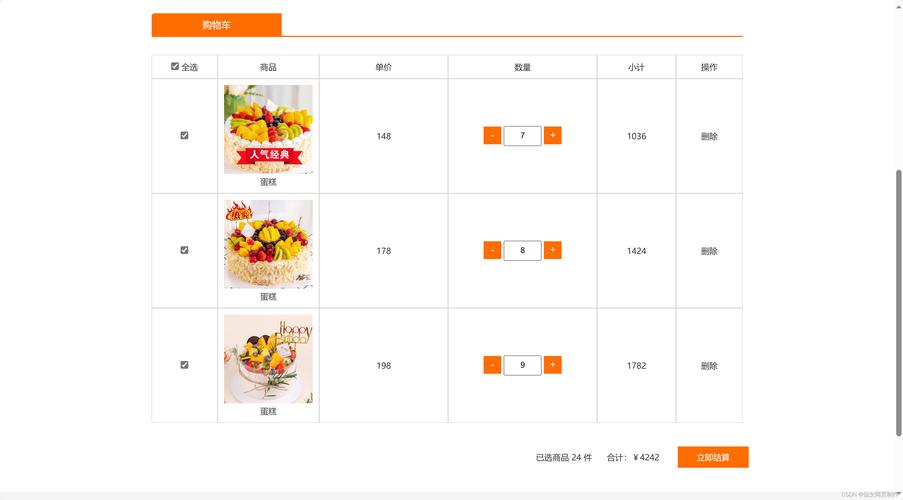
模仿毛玻璃的视觉效果,常用于导航栏、卡片等,让界面更有层次感。
(图片来源网络,侵删)
<!DOCTYPE html>
<html lang="zh-CN">
<head>
    <meta charset="UTF-8">玻璃态效果</title>
    <style>
        body {
            margin: 0;
            height: 100vh;
            background: url('https://images.unsplash.com/photo-1558591710-4b4a1ae0f04d?ixlib=rb-4.0.3') no-repeat center center/cover;
            display: flex;
            justify-content: center;
            align-items: center;
        }
        /*
         * 核心原理:
         * 1. background: rgba(..., alpha) - 使用半透明背景色。
         * 2. backdrop-filter: blur(px) - 关键属性,给元素后面的内容添加模糊效果。
         * 3. border: 1px solid rgba(..., alpha) - 添加一个同样半透明的边框,增强质感。
        */
        .glass-card {
            background: rgba(255, 255, 255, 0.1);
            backdrop-filter: blur(10px);
            -webkit-backdrop-filter: blur(10px); /* Safari 支持 */
            border: 1px solid rgba(255, 255, 255, 0.2);
            border-radius: 15px;
            padding: 2rem 3rem;
            color: white;
            text-align: center;
            box-shadow: 0 8px 32px 0 rgba(31, 38, 135, 0.37);
        }
    </style>
</head>
<body>
    <div class="glass-card">
        <h1>玻璃态卡片</h1>
        <p>这个卡片有毛玻璃效果,可以看到背景图片被模糊了。</p>
    </div>
</body>
</html>
2 视差滚动
当用户滚动页面时,不同背景层以不同速度移动,创造出深度感和动感。
<!DOCTYPE html>
<html lang="zh-CN">
<head>
    <meta charset="UTF-8">视差滚动</title>
    <style>
        body, html { margin: 0; height: 100%; overflow-x: hidden; }
        .parallax-container {
            height: 100vh;
            overflow: hidden;
            position: relative;
        }
        .parallax-layer {
            position: absolute;
            top: 0;
            left: 0;
            right: 0;
            bottom: 0;
        }
        .layer-bg {
            background: url('https://images.unsplash.com/photo-1544552866-d3ed42536cfd?ixlib=rb-4.0.3') no-repeat center center/cover;
            will-change: transform; /* 性能优化 */
        }
        .layer-mid {
            background: url('https://images.unsplash.com/photo-1519904981063-b0cf448d479e?ixlib=rb-4.0.3') no-repeat center center/cover;
            opacity: 0.7;
            will-change: transform;
        }
        .layer-front {
            background: url('https://images.unsplash.com/photo-1519501025264-65ba15a82390?ixlib=rb-4.0.3') no-repeat center center/cover;
            will-change: transform;
        }
        .content {
            position: absolute;
            top: 50%;
            left: 50%;
            transform: translate(-50%, -50%);
            text-align: center;
            color: white;
            z-index: 10;
        }
    </style>
</head>
<body>
    <div class="parallax-container">
        <div class="parallax-layer layer-bg" data-speed="0.2"></div>
        <div class="parallax-layer layer-mid" data-speed="0.5"></div>
        <div class="parallax-layer layer-front" data-speed="0.8"></div>
        <div class="content">
            <h1>滚动我</h1>
            <p>观察背景、中景和前景的不同移动速度</p>
        </div>
    </div>
    <script>
        window.addEventListener('scroll', () => {
            const scrolled = window.pageYOffset;
            const parallaxElements = document.querySelectorAll('.parallax-layer');
            parallaxElements.forEach(element => {
                const speed = element.dataset.speed;
                const yPos = -(scrolled * speed);
                element.style.transform = `translateY(${yPos}px)`;
            });
        });
    </script>
</body>
</html>
实用功能组件
1 响应式导航栏
在桌面端显示为水平菜单,在移动端显示为“汉堡包”菜单。
<!DOCTYPE html>
<html lang="zh-CN">
<head>
    <meta charset="UTF-8">
    <meta name="viewport" content="width=device-width, initial-scale=1.0">响应式导航栏</title>
    <style>
        * { box-sizing: border-box; margin: 0; padding: 0; }
        body { font-family: sans-serif; }
        nav {
            background: #333;
            color: white;
            padding: 1rem;
        }
        .nav-container {
            display: flex;
            justify-content: space-between;
            align-items: center;
            max-width: 1200px;
            margin: 0 auto;
        }
        .logo { font-size: 1.5rem; font-weight: bold; }
        .nav-menu {
            display: flex;
            list-style: none;
        }
        .nav-menu li { margin-left: 1.5rem; }
        .nav-menu a {
            color: white;
            text-decoration: none;
            transition: color 0.3s;
        }
        .nav-menu a:hover { color: #f4f4f4; }
        /* 汉堡包图标 */
        .hamburger {
            display: none;
            flex-direction: column;
            cursor: pointer;
        }
        .hamburger span {
            width: 25px;
            height: 3px;
            background: white;
            margin: 3px 0;
            transition: 0.3s;
        }
        /* 响应式设计 */
        @media (max-width: 768px) {
            .hamburger { display: flex; }
            .nav-menu {
                position: fixed;
                left: -100%;
                top: 70px;
                flex-direction: column;
                background: #333;
                width: 100%;
                text-align: center;
                transition: 0.3s;
                box-shadow: 0 10px 27px rgba(0,0,0,0.05);
                padding: 2rem 0;
            }
            .nav-menu.active {
                left: 0;
            }
            .nav-menu li { margin: 1rem 0; }
        }
    </style>
</head>
<body>
    <nav>
        <div class="nav-container">
            <div class="logo">Logo</div>
            <ul class="nav-menu">
                <li><a href="#">首页</a></li>
                <li><a href="#">lt;/a></li>
                <li><a href="#">服务</a></li>
                <li><a href="#">联系</a></li>
            </ul>
            <div class="hamburger">
                <span></span>
                <span></span>
                <span></span>
            </div>
        </div>
    </nav>
    <script>
        const hamburger = document.querySelector('.hamburger');
        const navMenu = document.querySelector('.nav-menu');
        hamburger.addEventListener('click', () => {
            navMenu.classList.toggle('active');
        });
        // 点击菜单项后关闭菜单
        document.querySelectorAll('.nav-menu a').forEach(n => n.addEventListener('click', () => {
            navMenu.classList.remove('active');
        }));
    </script>
</body>
</html>
综合实战案例
1 现代登录页面
结合玻璃态、输入框聚焦动画、响应式布局等多种效果。
<!DOCTYPE html>
<html lang="zh-CN">
<head>
    <meta charset="UTF-8">
    <meta name="viewport" content="width=device-width, initial-scale=1.0">现代登录页面</title>
    <style>
        * { box-sizing: border-box; margin: 0; padding: 0; }
        body {
            font-family: 'Arial', sans-serif;
            background: linear-gradient(135deg, #667eea 0%, #764ba2 100%);
            height: 100vh;
            display: flex;
            justify-content: center;
            align-items: center;
        }
        .login-container {
            background: rgba(255, 255, 255, 0.1);
            backdrop-filter: blur(10px);
            -webkit-backdrop-filter: blur(10px);
            border-radius: 20px;
            padding: 40px;
            width: 400px;
            box-shadow: 0 8px 32px 0 rgba(31, 38, 135, 0.37);
            border: 1px solid rgba(255, 255, 255, 0.18);
        }
        h2 {
            color: white;
            text-align: center;
            margin-bottom: 30px;
            font-weight: 300;
        }
        .input-group {
            position: relative;
            margin-bottom: 30px;
        }
        .input-group input {
            width: 100%;
            padding: 10px 10px 10px 40px;
            background: rgba(255, 255, 255, 0.1);
            border: 1px solid rgba(255, 255, 255, 0.2);
            border-radius: 50px;
            color: white;
            font-size: 16px;
            outline: none;
            transition: all 0.3s ease;
        }
        .input-group input::placeholder {
            color: rgba(255, 255, 255, 0.7);
        }
        .input-group input:focus {
            background: rgba(255, 255, 255, 0.2);
            border-color: rgba(255, 255, 255, 0.4);
        }
        .input-group i {
            position: absolute;
            left: 15px;
            top: 50%;
            transform: translateY(-50%);
            color: rgba(255, 255, 255, 0.7);
        }
        .btn {
            width: 100%;
            padding: 12px;
            background: rgba(255, 255, 255, 0.2);
            border: none;
            border-radius: 50px;
            color: white;
            font-size: 16px;
            font-weight: bold;
            cursor: pointer;
            transition: all 0.3s ease;
        }
        .btn:hover {
            background: rgba(255, 255, 255, 0.3);
            transform: translateY(-2px);
        }
        .signup-link {
            text-align: center;
            margin-top: 20px;
            color: rgba(255, 255, 255, 0.7);
        }
        .signup-link a {
            color: white;
            text-decoration: none;
        }
    </style>
    <!-- 引入 Font Awesome 图标库 -->
    <link rel="stylesheet" href="https://cdnjs.cloudflare.com/ajax/libs/font-awesome/6.0.0-beta3/css/all.min.css">
</head>
<body>
    <div class="login-container">
        <h2>欢迎登录</h2>
        <form>
            <div class="input-group">
                <i class="fas fa-user"></i>
                <input type="text" placeholder="用户名或邮箱" required>
            </div>
            <div class="input-group">
                <i class="fas fa-lock"></i>
                <input type="password" placeholder="密码" required>
            </div>
            <button type="submit" class="btn">登录</button>
        </form>
        <p class="signup-link">还没有账号? <a href="#">立即注册</a></p>
    </div>
</body>
</html>
总结与资源
这份“大全”涵盖了从基础到进阶的多种网页效果,关键在于:
- 动手实践:亲手敲一遍代码,修改参数,看看效果如何变化。
- 理解原理:不要只做“复制粘贴员”,要理解每个属性和脚本的作用。
- 关注细节:
transition、z-index、box-shadow等细节是提升用户体验的关键。 - 性能优化:对于动画,考虑使用
will-change属性;对于复杂布局,了解flex和grid。
推荐资源:
- CSS Tricks: 一个关于 CSS 的宝藏网站,几乎所有效果都有详细教程。
- MDN Web Docs: Web 技术的权威文档,最准确、最全面。
- CodePen / JSFiddle: 在线代码编辑器,可以让你快速分享和测试代码片段。
- Awwwards / CSS Design Awards: 灵感来源,看看世界顶级的网页是如何实现的。
希望这份大全能成为您学习和开发路上的得力助手!